
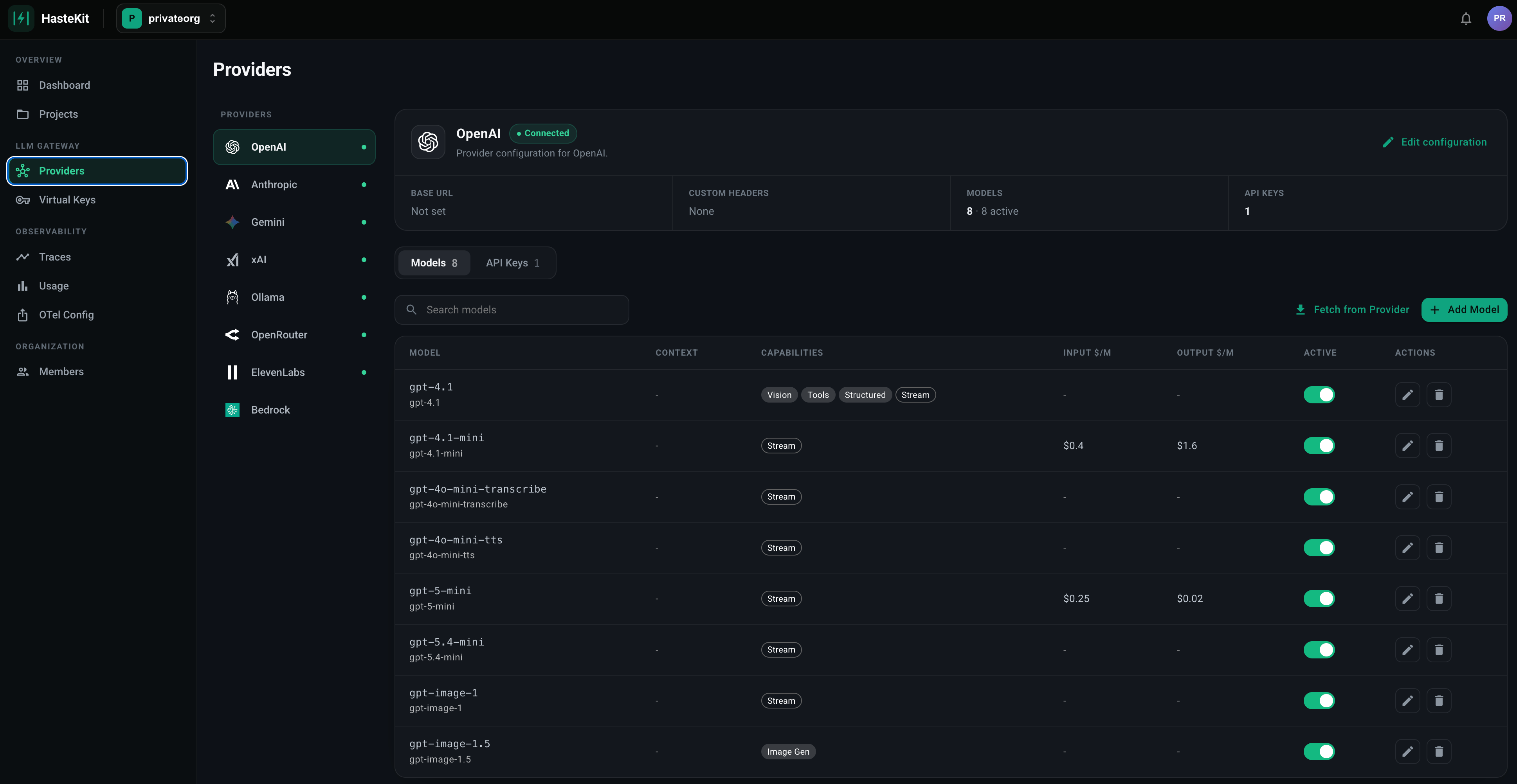
Supported Providers
The gateway supports the following LLM providers:- OpenAI - GPT models (GPT-4, GPT-3.5, etc.)
- Anthropic - Claude models
- Gemini - Google’s Gemini models
- xAI - Grok models
- Ollama - Self-hosted models
Configuring Provider Settings
Each provider can be configured with custom base URLs and custom headers. This is useful for:- Using proxy servers or custom endpoints
- Adding authentication headers
- Using compatible API endpoints
Setting Base URL
To configure a custom base URL for a provider:- Navigate to the Providers page
- Select the provider tab
- Click the Edit button next to the provider name in the provider configuration table
- In the Base URL field, enter your custom base URL (e.g.,
https://api.openai.com/v1) - Click Save
- Using a proxy server:
https://proxy.example.com/openai - Using a compatible API endpoint:
https://api.example.com/v1 - Self-hosted instances:
http://localhost:8080/v1
Adding Custom Headers
To add custom headers to provider requests:- Navigate to the Providers page
- Select the provider tab
- Click the Edit button next to the provider name
- In the Custom Headers section:
- Enter the Header name (e.g.,
X-Custom-Auth) - Enter the Header value (e.g.,
Bearer token123or{{Env.CUSTOM_AUTH_TOKEN}}) - Click Add to add the header
- Enter the Header name (e.g.,
- Click Save
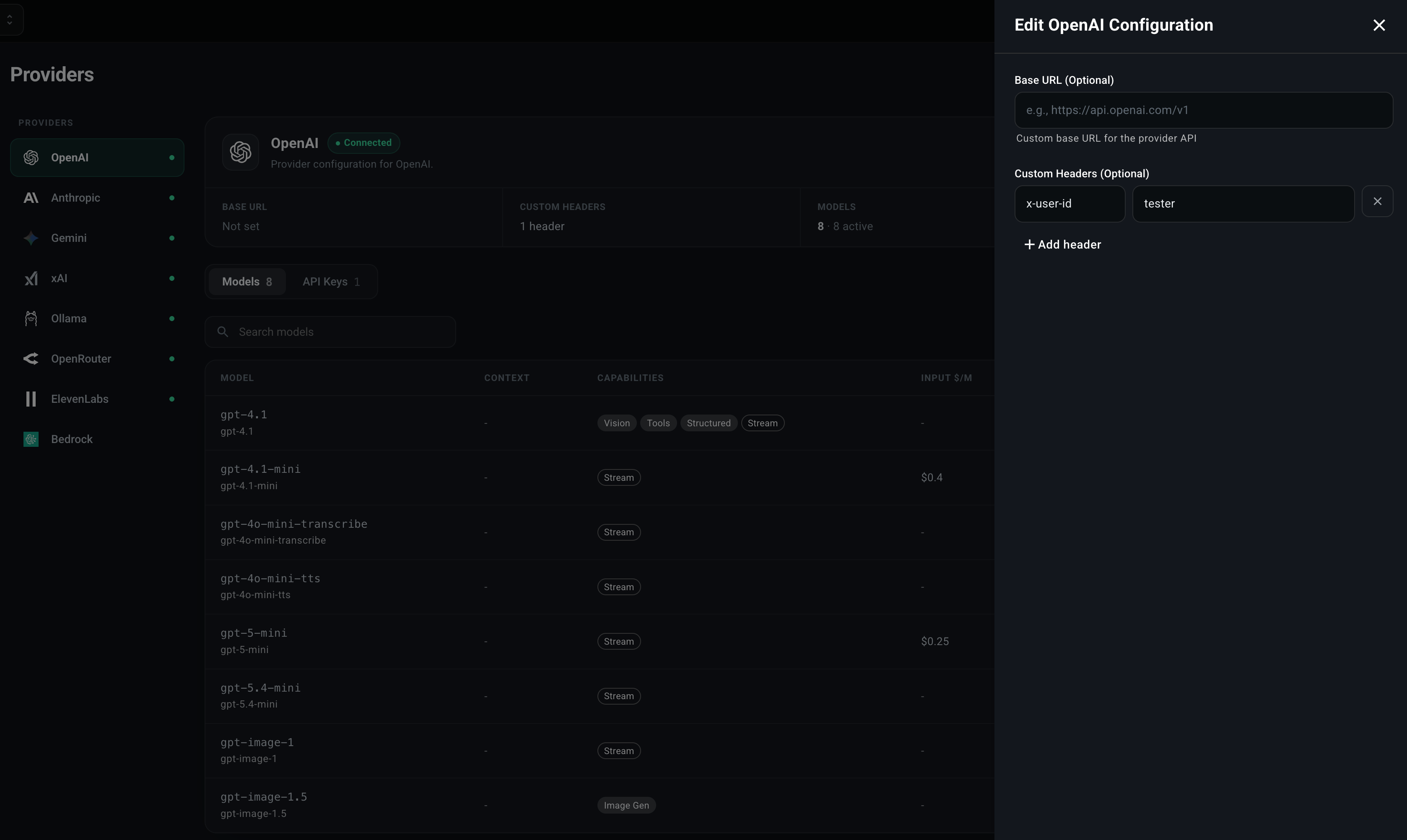
{{Env.VARIABLE_NAME}} syntax.
Example use cases:
- Adding authentication tokens
- Setting custom API version headers
- Adding proxy authentication headers
- Using environment variables for header values
Adding API Keys
To add an API key for a provider:- Navigate to the Providers page in the dashboard
- Select the provider tab (OpenAI, Anthropic, Gemini, xAI, or Ollama)
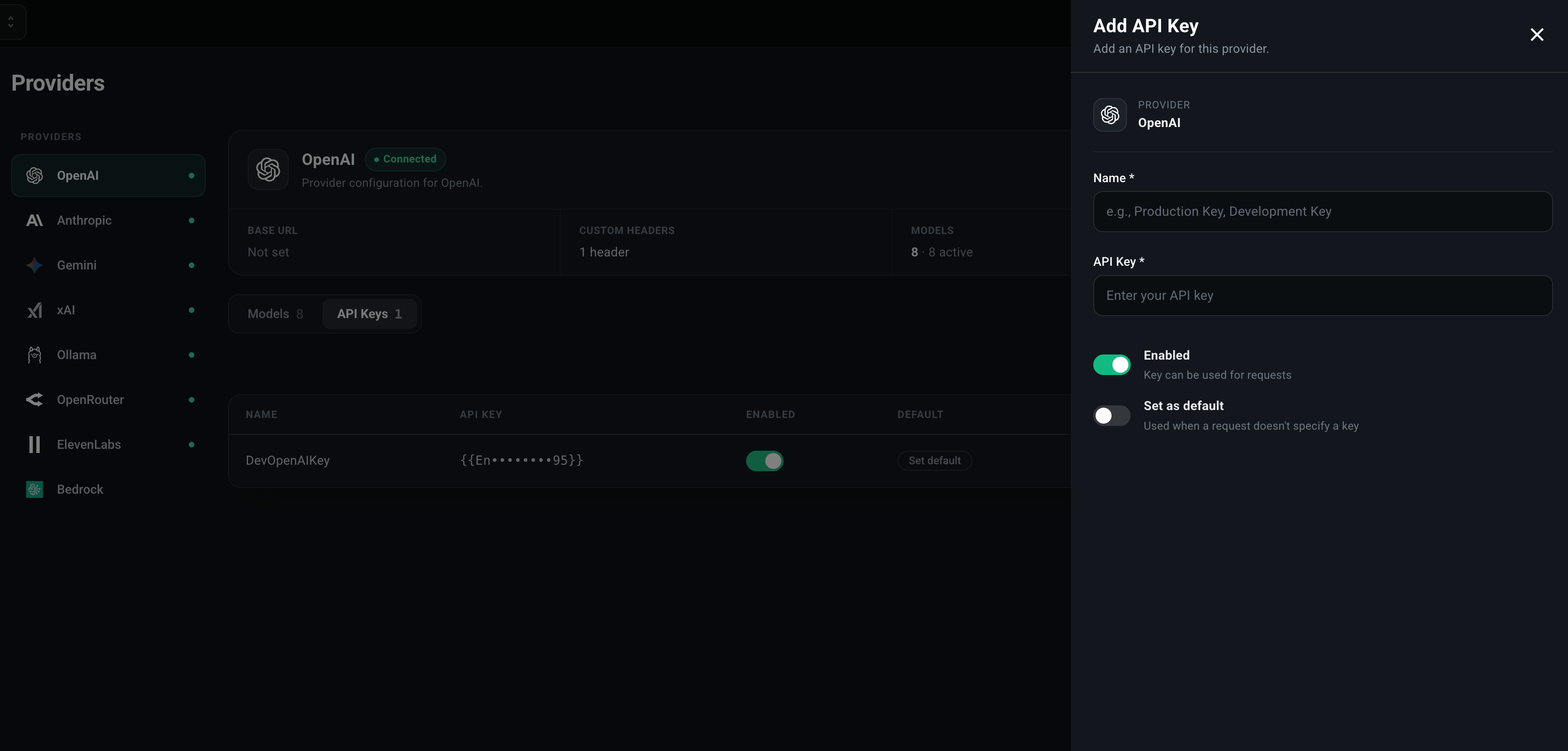
- Click the Add API Key button
- Fill in the form:
- Provider Type: Select the provider (pre-filled based on the selected tab)
- Name: Enter a descriptive name (e.g., “Production Key”, “Development Key”)
- API Key: Enter your API key or use an environment variable reference (see below)
- Enabled: Toggle to enable or disable the key
- Set as default: Check to make this the default key for the provider
- Click Create
Using Environment Variables for API Keys
Instead of storing API keys directly, you can reference environment variables using the{{Env.VARIABLE_NAME}} syntax. This is recommended for security and makes it easier to manage keys across different environments.
Example:
-
Set the environment variable in your system or container:
-
In the API Key field, enter:
- The gateway will automatically resolve the environment variable when the API key is used.
- Keys are not stored in the database
- Easy to rotate keys by updating environment variables
- Different keys for different environments (dev, staging, production)
- Follows security best practices